Getting Started
Connect your accounts and send appointments.

Here’s how to connect Resurva to your
Lightspeed Retail X-Series account:
Here’s how to connect Resurva to your Lightspeed Retail X-Series account:
Step 1
Connect your Lightspeed Retail X-Series account in Resurva
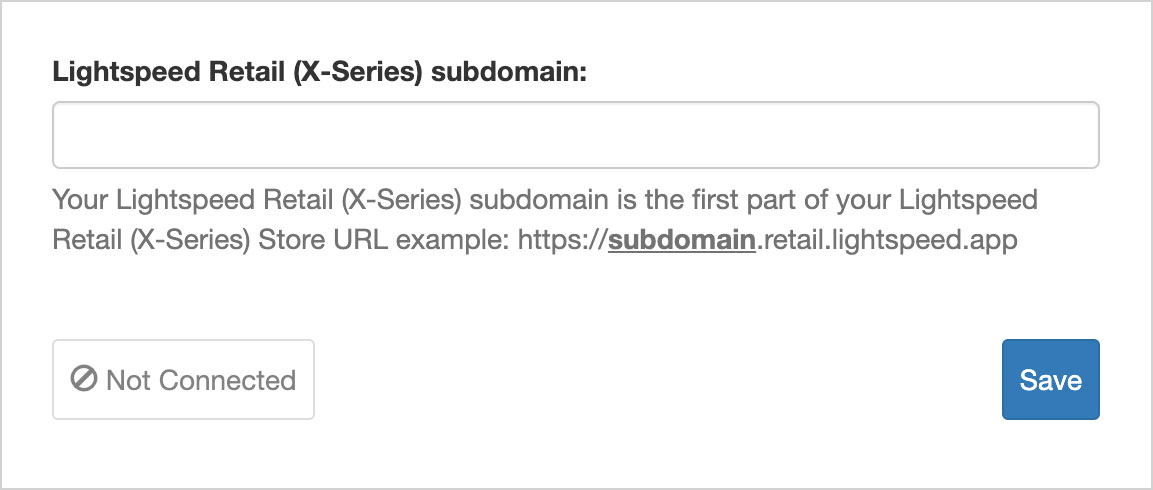
If you already have a Lightspeed Retail X-Series account, you can connect it from the Resurva dashboard by navigating to Manage > POS.
The subdomain is the same as the store URL you use to log into your account on the Lightspeed Retail X-Series website. After clicking Save, you’ll be taken to a secure login page to enter your account credentials.
Step 2
Connect your Resurva location to a Lightspeed Retail X-Series register
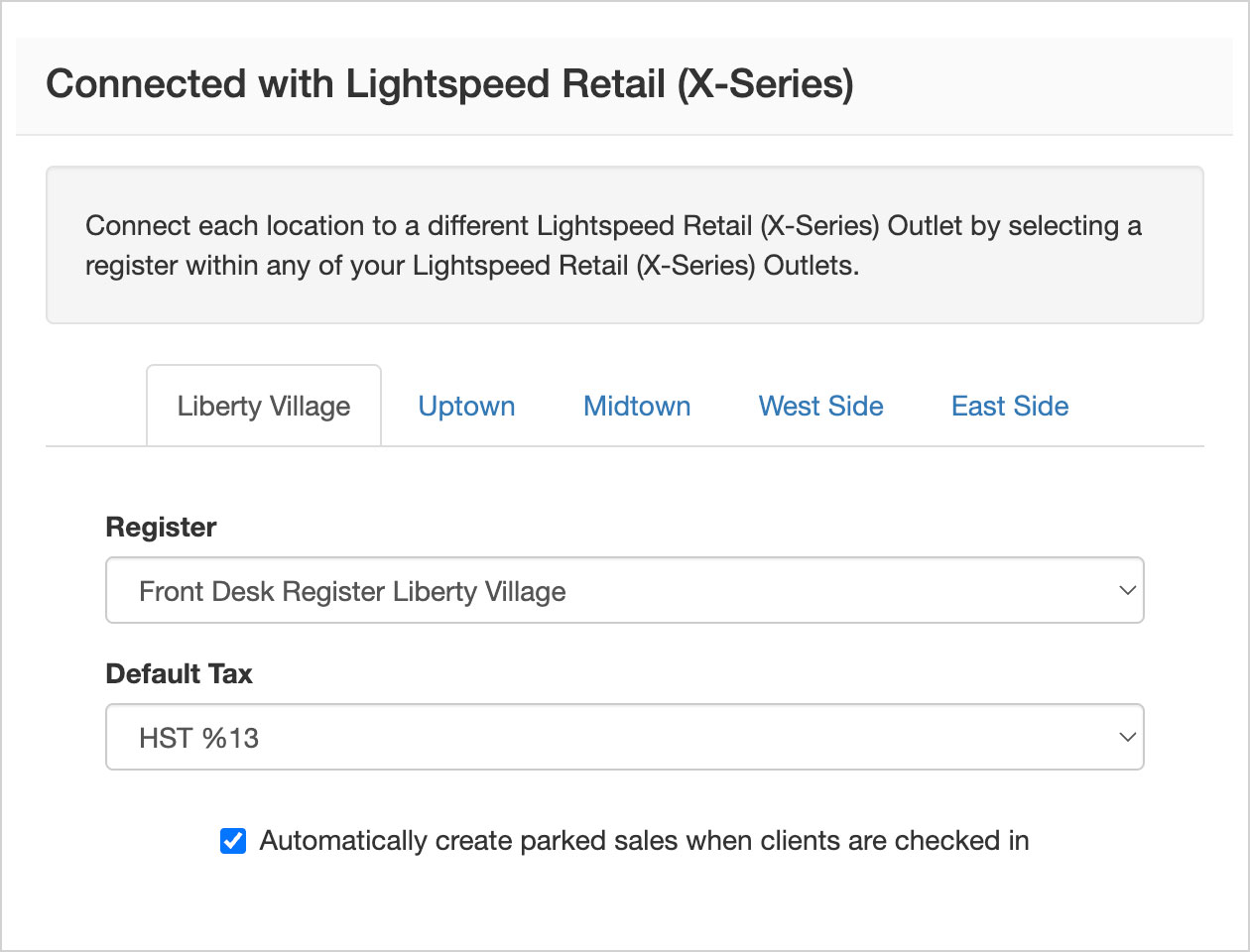
Once your account is connected, you can select a Lightspeed Retail X-Series register from the list.
If you haven’t set up a register yet, you can create one from the Lightspeed Retail X-Series dashboard by navigating to Setup > Outlets and Registers and clicking Add Outlet in the top left. You can read more about outlets and registers on the Lightspeed support center: Lightspeed – Setting up your outlets and registers.
Step 3
Send appointments to your Lightspeed register by default
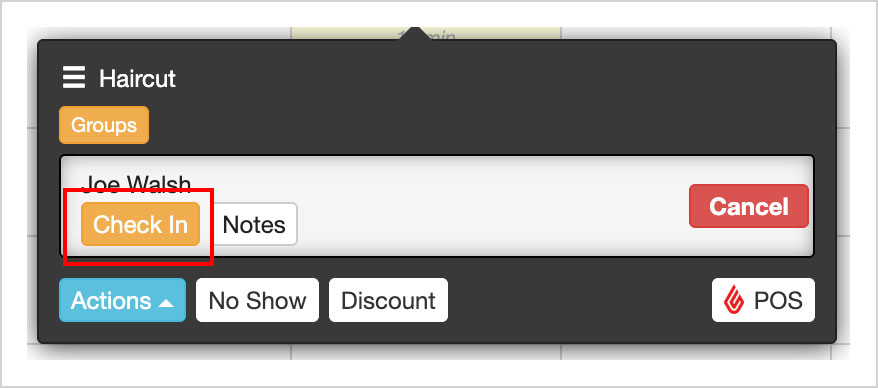
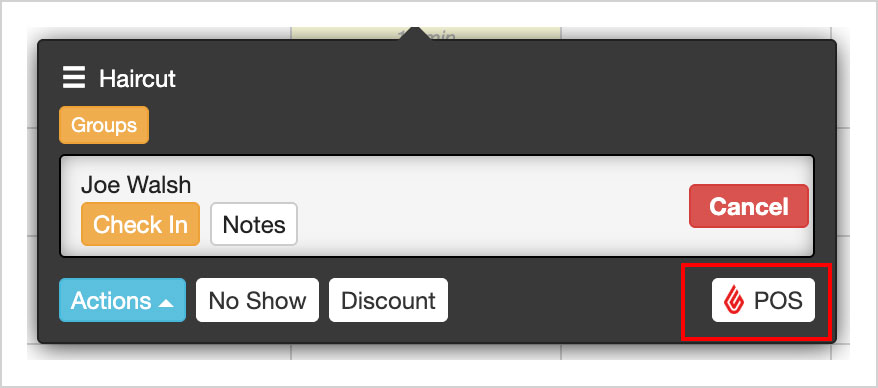
By default, appointments are automatically sent to your Lightspeed Retail X-Series register as a parked order when the client is checked in on Resurva, by clicking the Check In button on the time slot.
If you’d like to manually choose which appointments to send to your Lightspeed Retail X-Series register, uncheck the option for Automatically create parked Lightspeed orders when client is checked in. To send an appointment to your Lightspeed register, click the POS button on the time slot.
Step 4
Manage your products in Lightspeed Retail X-Series
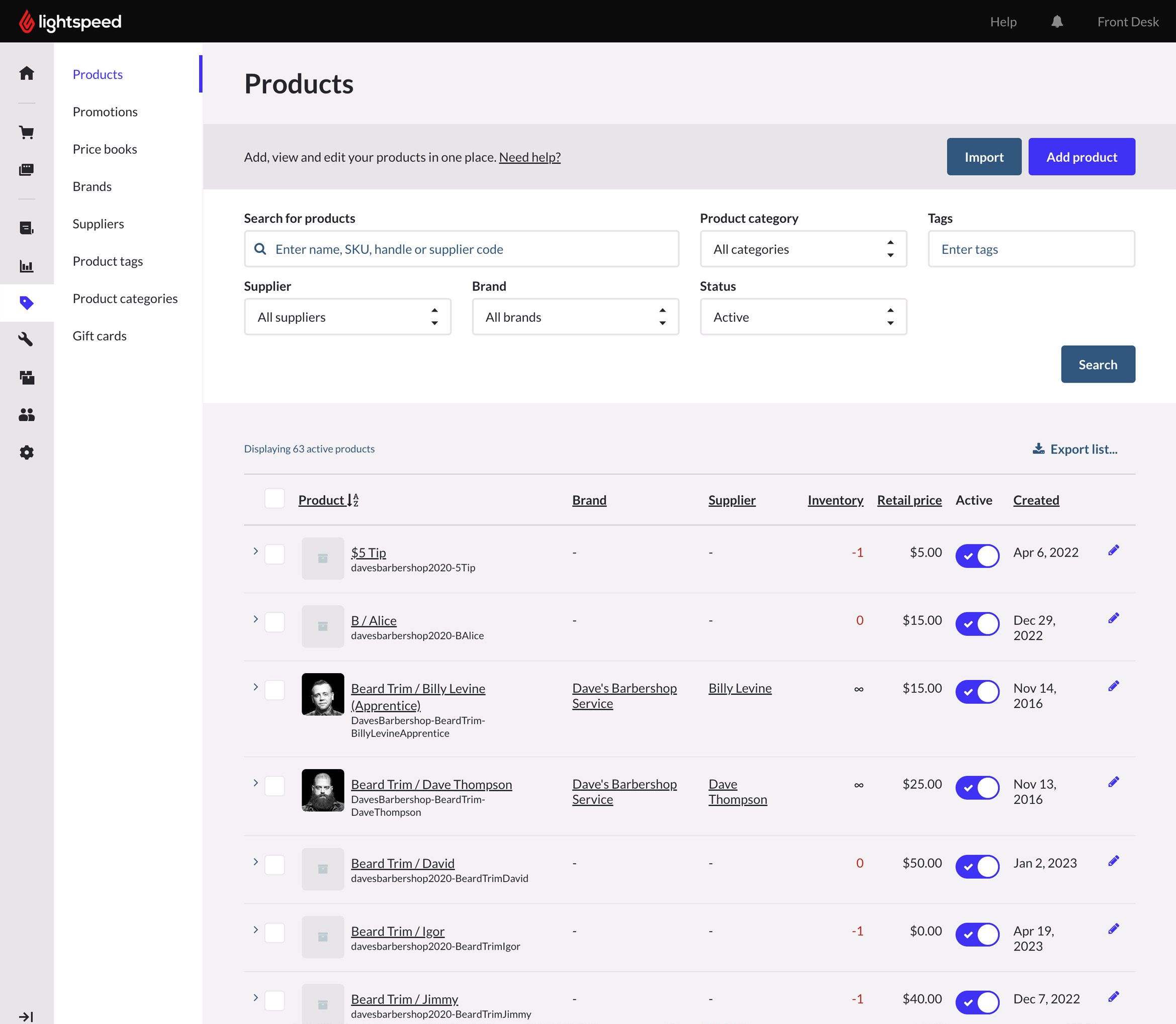
When you connect a Lightspeed Retail X-Series account to Resurva, all of your products and services will be added to your Lightspeed Retail X-Series catalog automatically. You can make changes to the products (such as adding descriptions, variants, and product relationships) by navigating to Catalog > Products from the Lightspeed Retail X-Series dashboard.